
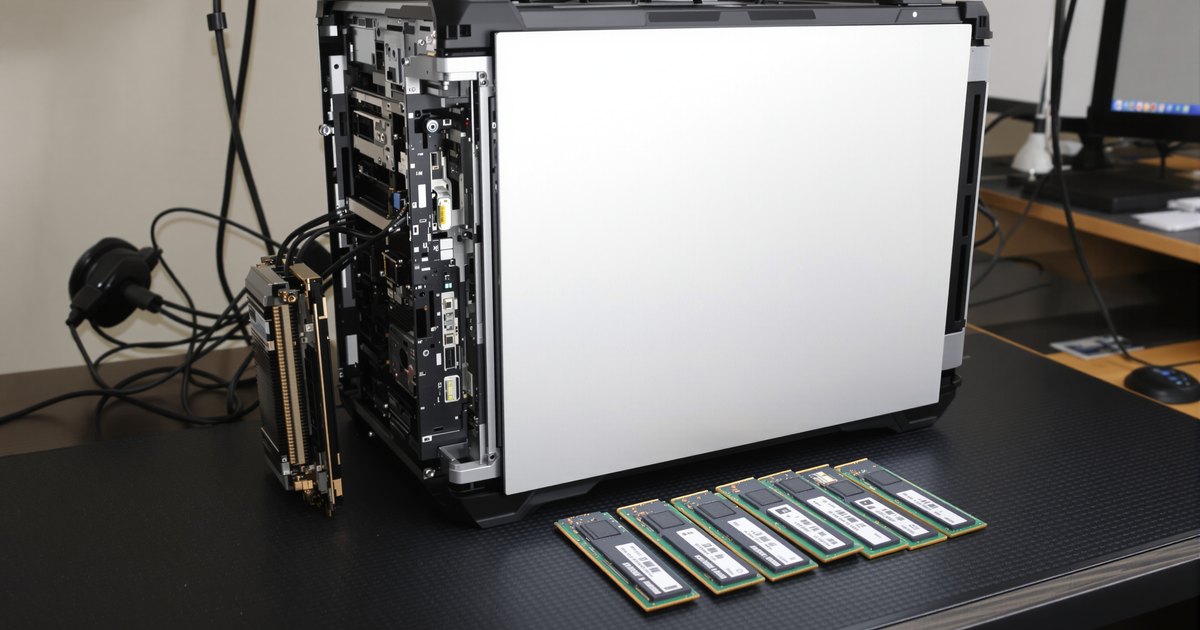
TRX50 is AMD's high-end desktop platform for Threadripper 7000 and 9000 processors, and it also accepts Threadripper PRO WX processors. It sits between desktop Ryzen and the eight-channel WRX90 workstation platform. Memory works differently from a desktop: it takes registered ECC DDR5, it runs on four channels, and getting full bandwidth depends on filling every channel. This guide covers the platform rules, the slot layout on popular boards and the install steps.
TRX50 memory at a glance
- Memory type: DDR5 ECC RDIMM. Some boards also list 3DS RDIMM. Desktop UDIMMs do not work; see why in ECC UDIMM vs ECC RDIMM.
- Channels: four. AMD specifies TRX50 as four-channel with up to 1TB, and Threadripper PRO processors on TRX50 also run four channels.
- Speed: AMD launched Threadripper 7000 on TRX50 at DDR5-5200 RDIMM. Launch coverage of Threadripper 9000 lists DDR5-6400.
- Overclocking: TRX50 supports memory overclocking, including EXPO RDIMMs. The WRX90 platform does not offer overclocking on OEM systems.
If you need eight channels or up to 2TB, the platform is WRX90; see our AMD WRX90 memory guide and eight-channel population on WRX90. For background on the chips, read AMD Threadripper motherboards and memory configuration.
TRX50 boards and their slots
| Board | Slots | Memory | Maximum | Notes |
|---|---|---|---|---|
| ASUS Pro WS TRX50-SAGE WIFI and WIFI A | 4 (DIMM_A1, C1, E1, G1) | DDR5 ECC RDIMM | See ASUS QVL | Four channels, one DIMM each. |
| ASRock TRX50 WS | 4 (DDR5_A0, C0, E0, G0) | DDR5 RDIMM and 3DS RDIMM | 1TB | ASRock requires identical modules: same brand, speed, size and chip type. |
| GIGABYTE TRX50 AERO D | 4 | DDR5 RDIMM and 3DS RDIMM, 4400 to 5200 rated | 1TB | EXPO and XMP listed; higher speeds listed as overclocking. |
| GIGABYTE TRX50 AI TOP | 8 | DDR5 RDIMM and 3DS RDIMM | 2TB | GIGABYTE lists eight-channel operation with Threadripper PRO processors on this board. Check its manual for population. |
Slot labels differ between brands. Use the names printed on your board and in its manual, not a layout copied from another model.
How many modules to install
Four modules, one per channel, is the configuration that gives full bandwidth on a four-slot TRX50 board. ASRock notes that two modules run in dual-channel mode and four run in quad-channel mode. Two modules halve the theoretical bandwidth, which matters for rendering, simulation and large compiles. One module works for testing but is a poor long-term choice.
Install identical modules: the same capacity, speed, rank and part number. ASRock states this requirement in its TRX50 WS manual. Mixed modules run at the slowest module's settings at best, and can fail training. For more on channel counts, see dual vs quad vs eight-channel memory.
How to install RAM in a TRX50 workstation
Step 1: Plan for four channels
TRX50 has four memory channels. Plan for four identical ECC RDIMMs, one per channel, for full bandwidth. Choose the capacity per module from your total target, up to the board's 1TB maximum.
Step 2: Update the BIOS first
With the existing memory and processor installed, update the board to the latest BIOS. Threadripper 9000 processors need a BIOS update on existing TRX50 boards, and newer releases add memory fixes.
Step 3: Power down and ground yourself
Shut down, switch off the power supply and unplug it. Wear an antistatic wrist strap and touch a bare metal part of the case.
Step 4: Find the slots in the manual
Locate the four DIMM slots and their labels: DIMM_A1, C1, E1 and G1 on the ASUS Pro WS TRX50-SAGE WIFI, DDR5_A0, C0, E0 and G0 on the ASRock TRX50 WS. With fewer than four modules, use the slots the manual's population table lists.
Step 5: Install the modules
Open the slot latches, align the notch on each RDIMM with the key in the slot, and press both ends down evenly until the latches click closed.
Step 6: Allow time for the first boot
Reconnect power and start the system. The first boot after a memory change can take longer while the BIOS trains the memory. Let it finish without resetting.
Step 7: Verify capacity, channels and speed
Enter the BIOS and confirm the total capacity and memory speed. In the operating system, check that all four modules are listed. Enable EXPO only if your modules have an EXPO profile and you want to run beyond the rated speed.
If the system will not boot
GIGABYTE's TRX50 AERO D guide recommends a BIOS update if DDR5 modules are not recognized, and clearing CMOS if POST takes too long or behaves inconsistently. Reseat each module, then test with the modules your manual lists for a single-DIMM configuration. Our RAM not detected by the BIOS guide covers the next checks, and our guide on updating BIOS to support new RAM covers ASUS, ASRock and GIGABYTE flashing tools.
TRX50 memory from NEMIX RAM
NEMIX RAM lists DDR5 RDIMM kits by board. For the ASUS Pro WS TRX50-SAGE WIFI and WIFI A, choose DDR5-6400, DDR5-5600 or DDR5-4800. For the ASRock TRX50 WS, choose DDR5-6400 or DDR5-5600. Browse all Threadripper motherboard memory, DDR5 RDIMM modules, or the ASUS and ASRock workstation collections.
Frequently asked questions
What memory does a TRX50 motherboard use?
TRX50 boards use DDR5 ECC registered memory (RDIMM). Some boards also list 3DS RDIMMs. Unbuffered desktop memory does not work.
How many memory channels does TRX50 have?
AMD specifies TRX50 as a four-channel platform with up to 1TB of memory. That applies to both Threadripper and Threadripper PRO processors installed on a TRX50 board. The eight-channel platform is WRX90.
What memory speed does TRX50 support?
AMD launched the Threadripper 7000 series on TRX50 at DDR5-5200 RDIMM. Launch coverage of the Threadripper 9000 series lists DDR5-6400. Board vendors list higher speeds as overclocking.
Can I use two DIMMs in a TRX50 board?
Yes, but two modules run in dual-channel mode and halve the available bandwidth. Use the slots listed in your board manual's population table, and plan for four modules if bandwidth matters for your workload.
Does TRX50 support EXPO?
Yes. TRX50 supports memory overclocking, and EXPO RDIMMs exist for the platform. GIGABYTE lists EXPO support on its TRX50 boards. Run at rated speed if stability matters more than peak bandwidth.
Do I need a BIOS update for Threadripper 9000 on TRX50?
Yes. The Threadripper 9000 series is a drop-in upgrade for TRX50 after a BIOS update. Flash the BIOS with the old processor installed, or use the board's flashback feature.
Buying for more than one system
IT teams and integrators that maintain Threadripper workstations for rendering, engineering or development teams can standardize on one kit per model. Request a quote with your models and quantities, or send us your system model and we will confirm the right module before you order.
Steps and rules are summarized from the vendors' published documentation; follow the guide for your exact model.