
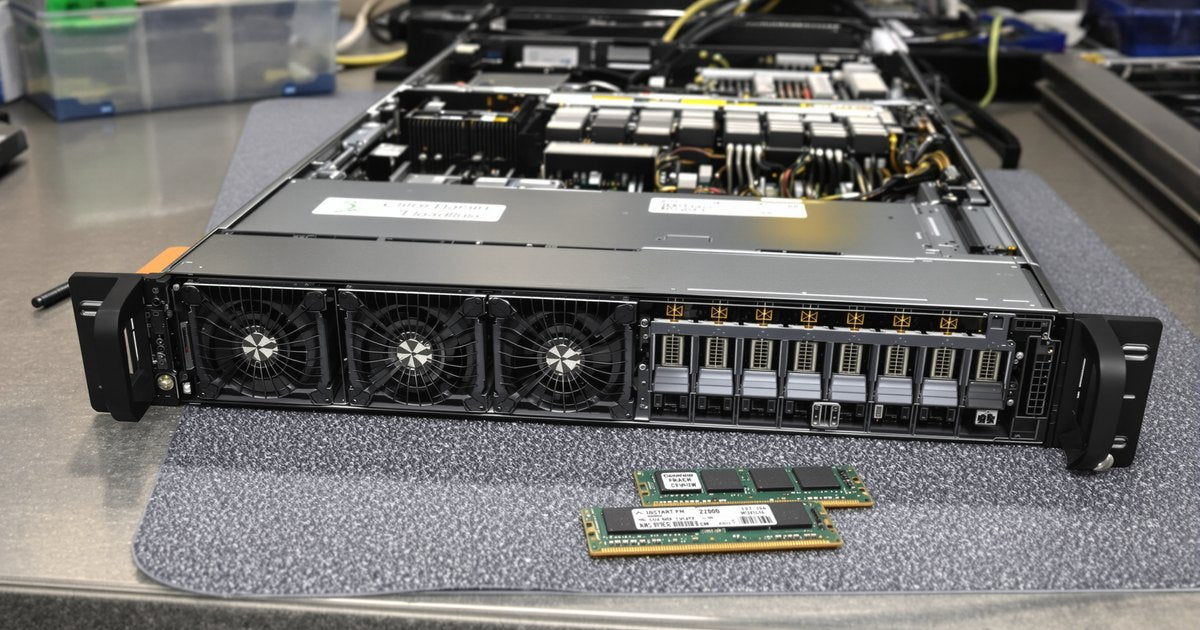
HPE ProLiant servers make memory upgrades simple to carry out and strict to plan. The slots are numbered, the first slot of each channel is white, and HPE publishes population rules for every generation. Follow them and the server boots on the first try at full bandwidth. This guide covers the memory each recent generation takes, the rules that matter, and the install steps from HPE's user guides.
Which memory does your ProLiant take?
| Generation | Examples | Memory | Slots |
|---|---|---|---|
| Gen10 (Intel) | DL360, DL380 Gen10 | DDR4 RDIMM or LRDIMM | 12 per processor (6 channels) |
| Gen10 Plus (Intel) | DL360, DL380 Gen10 Plus | DDR4-3200 RDIMM or LRDIMM | 16 per processor (8 channels) |
| Gen10 Plus (AMD) | DL325, DL385 Gen10 Plus | DDR4-3200 RDIMM or LRDIMM | 16 per processor (8 channels) |
| Gen11 (Intel) | DL360, DL380 Gen11 | DDR5 RDIMM | 16 per processor (8 channels) |
| Gen11 (AMD) | DL325, DL345, DL365, DL385 Gen11 | DDR5 RDIMM or 3DS RDIMM | 12 per processor (12 channels) |
Gen10 and Gen10 Plus servers take DDR4, and Gen11 servers take DDR5. UDIMMs are not supported on these rack servers. For model-by-model detail, see the HPE server memory guide. HPE's own population documents are collected at hpe.com/docs/server-memory.
HPE's population rules in plain terms
- Only for installed processors. Install DIMMs only in slots that belong to a processor that is installed.
- White slots first. The white slot is the first slot to fill in each channel.
- Identical channels, even split. Populate all channels of each processor identically and split the modules evenly across processors.
- One module type. No RDIMM and LRDIMM mix, no x4 and x8 mix, and on Gen11 AMD servers no 3DS RDIMM mixed with standard RDIMM. On Gen11 AMD, mixed capacities are allowed only within the same data width.
- Mixed capacity sets. On Gen10 Intel, HPE says sets of different capacities at the same speed have no performance cost, provided each set follows the rules.
If the layout breaks the rules, POST says so. Gen11 Intel servers report "Unsupported DIMM configuration detected: Processor X DIMM Y violates DIMM population rules". On AMD servers HPE warns of reduced capacity or performance.
Before you start
- Confirm the model, generation and processor count in iLO.
- Order matched modules: one kit per processor, same capacity, rank and speed.
- Update the system ROM if it is behind; HPE lists it as a first step for memory issues.
- Download the Active Health System log first if you are replacing a module after an error.
How to install memory in an HPE ProLiant server
Step 1: Check the current memory
In iLO, open System Information and the Memory tab. It lists Total Memory and each slot's location, status and size. Note which slots are filled.
Step 2: Power down and remove all power
Shut the server down, then disconnect each power cord from the power source and then from the server. Extend the server from the rack or remove it.
Step 3: Remove the access panel and air baffle
Ground yourself with a wrist strap. Remove the access panel, then the air baffle on models that have one. On servers with high-performance heatsinks, HPE says to let the heatsink cool for at least 5 minutes before you reach past it.
Step 4: Open the slot latches
Find the slots for the processor you are populating. Slots are numbered per processor (1 to 12 on Gen10, 1 to 16 on Gen11 Intel). Open the latches on the slots you will fill, starting with the white slots.
Step 5: Seat the DIMM
Hold the module by its side edges only and never bend it. Align the notch in the DIMM with the key in the slot and press it straight down until the latches close. HPE notes that DIMMs are keyed and should never be forced, and that properly installed DIMMs do not all face the same direction. On servers with wide heatsinks, slide the DIMM under the heatsink wing.
Step 6: Reassemble and power on
Reinstall the air baffle and access panel, return the server to the rack, reconnect power and power on.
Step 7: Check POST and iLO
Watch POST for a memory population message. Then open iLO, System Information, Memory, and confirm Total Memory and that every new slot shows Good. UEFI System Utilities shows the same under System Information, Memory Information.
After the upgrade
Advanced ECC is the default memory protection mode on Gen10 Plus servers and is set in BIOS/Platform Configuration (RBSU), Memory Options. Leave it unless you plan to use mirroring. To test the new modules, open System Utilities, Embedded Applications, Embedded Diagnostics and run the memory test: the quick test takes about 10 minutes, the extensive test 2 hours or more.
iLO's Memory Details include an "HPE Memory" field that reads No for any module that is not HPE SmartMemory. It identifies the module source and is expected with third-party memory. If the server logs a memory error or shows less memory than installed, follow our ProLiant memory troubleshooting guide.
Find memory for your ProLiant
- HPE memory upgrades and the HPE memory hub.
- Examples: DL380 Gen10 Plus DDR4-3200 RDIMM, DL360 Gen10 Plus, DL380 Gen11 DDR5 RDIMM and DL385 Gen11 DDR5-6400.
- By type: DDR4 RDIMM, DDR5 RDIMM and LRDIMM.
Frequently asked questions
Which slots do I fill first in an HPE ProLiant server?
HPE marks the first slot of each channel in white. Install DIMMs only for processors that are installed, fill the white slots first, and follow the population order in HPE's memory population rules for your generation.
Can I mix RDIMM and LRDIMM in a ProLiant server?
No. HPE's population rules for Gen10, Gen10 Plus and Gen11 servers say not to mix RDIMMs and LRDIMMs. They also rule out mixing x4 and x8 modules, and on Gen11 AMD servers, mixing 3DS RDIMM with standard RDIMM.
Should both processors have the same memory?
Yes. HPE says to split the DIMMs evenly across the processors and to populate the channels of each processor identically.
What happens if the configuration breaks the rules?
On Gen11 Intel servers POST reports "Unsupported DIMM configuration detected" with the processor and DIMM number. On AMD servers, HPE says violations may reduce capacity or performance or produce boot messages.
How do I see installed memory in iLO?
Open System Information and click the Memory tab. It shows Total Memory, Advanced Memory Protection status and every slot with its status and size.
What if the new memory is not recognized?
Check the Integrated Management Log, confirm the type and population, and update the system ROM. Our ProLiant memory troubleshooting guide walks through HPE's steps.
Buying for more than one system
IT teams and integrators that maintain ProLiant fleets can standardize on one kit per model. Request a quote with your models and quantities, or send us your system model and we will confirm the right module before you order.
Steps and rules are summarized from the vendors' published documentation; follow the guide for your exact model.