
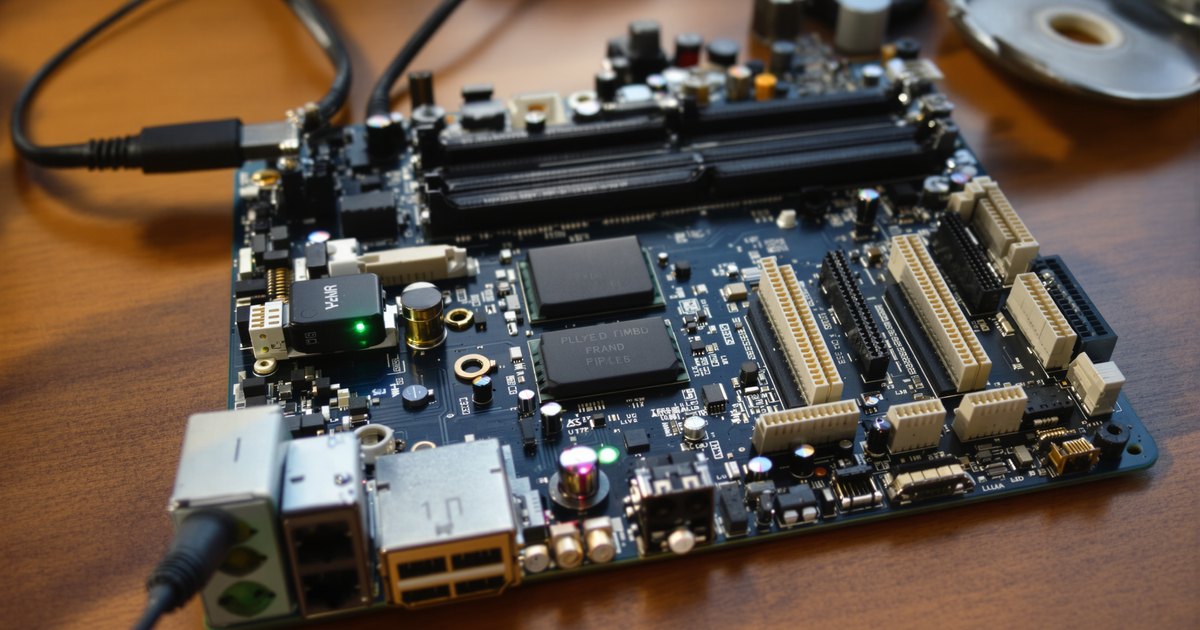
BIOS updates improve memory compatibility by updating the code that trains and configures memory at startup. New releases add support for new module capacities and speeds, fix training problems with specific modules, and often make XMP and EXPO profiles more reliable. On servers, release notes are where new DIMM support and memory fixes are announced, which makes a BIOS update the first step before any memory upgrade.
What a BIOS update can change for memory
| Change | Example | Who benefits |
|---|---|---|
| Support for new capacities | Desktop boards added non-binary sizes such as 48GB DDR5 | Desktop and workstation upgrades |
| New processor support | A newer CPU raises the supported memory speed | Anyone upgrading the processor |
| Memory training fixes | Fewer failed boots and long training times | Systems with many or large modules |
| Overclocking compatibility | XMP or EXPO profiles that now train reliably | Enthusiast desktops |
| Server DIMM support and errata | Release notes listing new DIMMs or memory fixes | Servers being upgraded or refreshed |
Desktops and workstations
On AMD platforms, memory changes arrive in AGESA firmware inside BIOS releases. On Intel platforms, they arrive with microcode and memory reference code updates. Either way, if new memory fails to train, runs slow or a profile will not hold, update the BIOS before swapping parts. See how to update BIOS to support new RAM and BIOS vs UEFI.
Servers: update before you upgrade
- Read the BIOS release notes for memory support and fixes.
- Update with the vendor's tool: Dell PowerEdge, HPE ProLiant, Supermicro.
- Update the management controller (iDRAC, iLO, BMC) if the release notes call for it.
- Install the new modules by the board's population rules.
- Confirm capacity and speed in the BIOS and the management logs. See how to verify RAM speed after installation.
What a BIOS update cannot do
- Make a board accept a different DDR generation or module type.
- Raise memory speed above what the processor supports. See how your CPU limits memory speed.
- Fix a faulty module. See how to fix RAM not detected by the BIOS.
For the difference between firmware improvements and overclocking, see BIOS update vs memory overclocking.
Memory for upgrades and refreshes
NEMIX RAM lists memory by system model, so the type, speed and capacity already match. Planning a fleet upgrade? Start with the server memory refresh guide and data center server memory.
Frequently asked questions
Can a BIOS update add support for new memory?
Yes. BIOS releases often add support for new module capacities, speeds or organizations. Desktop boards gained support for non-binary capacities such as 48GB through BIOS updates, and server vendors list newly supported DIMMs in release notes.
Can a BIOS update make XMP or EXPO more stable?
Often. Memory training and compatibility improve over a platform's life, so a profile that failed on an early BIOS may run on a later one. It is not assured.
Should I update the BIOS before adding RAM to a server?
Yes. Read the release notes for memory changes, update with the vendor's tool, then install the modules.
Will a BIOS update reset my memory settings?
Usually. Updates typically restore defaults, so XMP or EXPO and any manual timings must be re-entered.
Is it risky to update the BIOS?
There is a small risk if power is lost mid-update. Use the vendor's update method, a stable power source and the exact file for your model.
Buying for more than one system
IT teams and integrators that maintain servers being upgraded or refreshed can standardize on one kit per model. Request a quote with your models and quantities, or send us your system model and we will confirm the right module before you order.
Steps and rules are summarized from the vendors' published documentation; follow the guide for your exact model.