
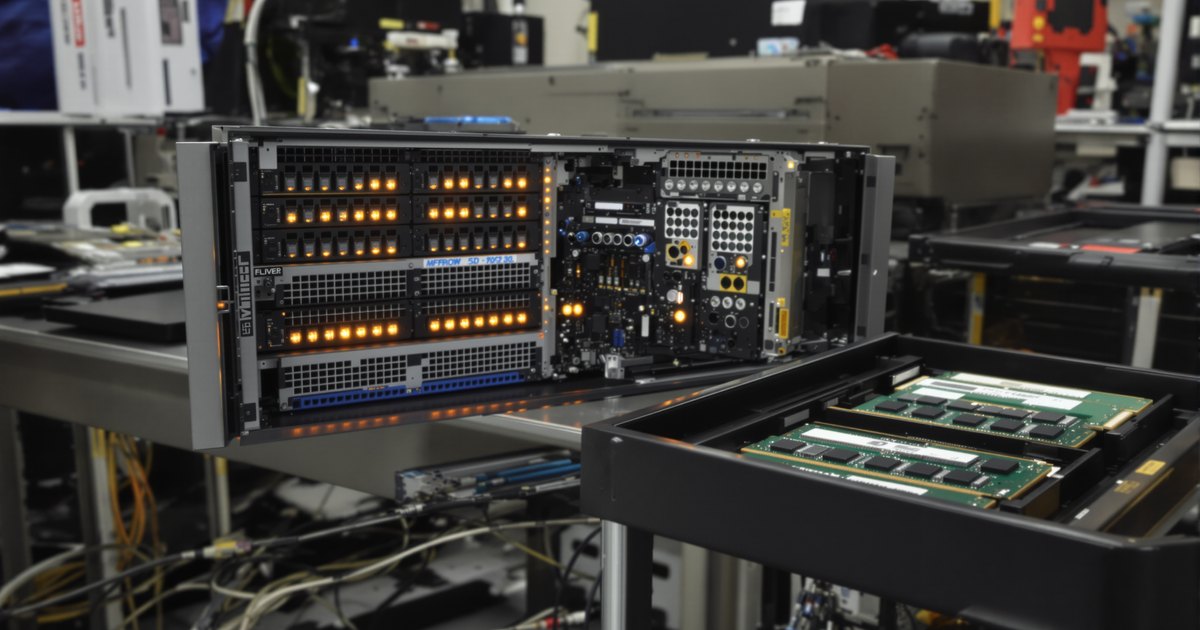
A server that will not POST after a memory install is a different problem from a desktop that will not start. You have a management controller that records what happened, a population plan to follow, and usually a service window. Use them. This guide covers the server recovery path. For the vendor-by-vendor causes see our server will not boot after a memory upgrade guide, and for the general checklist see the POST hub.
The short answer
- Read the management controller log first. iDRAC, iLO, XClarity or the BMC records what the memory check found, usually with the slot.
- Remove the new modules and confirm the server starts. If it does not, the new RAM is not the cause.
- Power down completely and reseat. Dell's guidelines put a full power off and reseat before any deeper step.
- Check the module against the processor. Several Dell cases come down to the processor not supporting the density or capacity.
- Add modules back in the documented order, one population step at a time.
What the log is telling you
| Log message or code | What it means | First action |
|---|---|---|
| MEM0001 | An uncorrectable event was consumed, which may cause a reboot if the OS cannot recover | Find the slot in the log, then reseat and test |
| MEM9072 | Patrol scrub found an uncorrectable error that was not consumed; usually no impact unless the OS uses that memory | Reseat and watch for repeats |
| MEM6104 | An uncorrectable error; the extended bytes show whether it was consumed or found by patrol scrub | Reseat and swap-test the module |
| UEFI0103 | A memory initialization error on a slot | Check the module and slot, then the module type |
| No memory is detected (14th generation) | Dell ties it to a mismatch between the processor and the memory specification | Check processor and module density |
| PST0128 No memory found (R860, R960) | Reported with 96GB DDR5 RDIMMs in medium core count processor servers; Dell says Intel allows them only with extreme core count processors | Check the processor and BIOS version |
Dell notes that these are examples and servers can report other memory events. Whatever the code, note the slot, because every later step depends on it.
The server recovery routine
- Record the symptom. Note the on-screen message, any LED or code on the front panel, and the last entries in the System Event Log.
- Remove the new modules. Confirm the server starts with the original memory. If not, stop here and look at the processor, riser or power.
- Check firmware. Dell's order is to confirm the CPLD, iDRAC and BIOS versions and update what is not current, because large or new modules can need a minimum BIOS. Update before the upgrade where you can, while the server still starts.
- Power off fully, reseat and clear the log. Dell's guidelines call for a full power off, reseating the modules and clearing the System Event Log so that new messages are easy to read.
- Install one new module in the first slot. On Dell servers that is the first white-tab socket. Confirm it is detected.
- Add the rest in the documented order. Keep processors populated alike. Dell's R750 manual says unbalanced channels lose performance and may not be recognized.
- Collect the diagnostic report. If errors repeat, Dell asks for a SupportAssist (TSR) log, and for one failing DIMM it points to the Lifecycle Controller log for the recommended action.
When the module is simply the wrong one
Server platforms are strict. Kingston's buying guide notes that RDIMM, LRDIMM and MRDIMM are not interchangeable and that mixing them in one system can prevent a server from booting, and that multi-processor servers should have identical memory populations. DDR4 and DDR5 do not interchange either. Read our memory types guide and the incompatible module guide to check a part number before it goes into a production server.
If the server posts but behaves oddly
A server that starts but reports less memory has a different set of causes, covered in why a server does not recognize all installed RAM. A server that runs and logs errors points to a module fault, covered in identifying a failing server DIMM.
Planning the replacement
When a module fails or is wrong for the server, the fix is a matched replacement. Send the server model, processor and the log message through the quote form and we will confirm the part number before you order.
Frequently asked questions
Why won't my server POST after installing RAM?
Common causes are the wrong module type, a processor that does not support the module's density or capacity, population that breaks the vendor's rules, or firmware that predates the module. Read the management controller log for the slot and message.
What should I do first when a server will not POST after a memory upgrade?
Remove the new modules and confirm the server starts, then read the System Event Log. Dell's order is to check firmware, power off fully, reseat the modules, clear the log and reboot.
Can one bad DIMM stop a server from posting?
Yes. A module that fails to initialize can stop POST or leave the server running with that memory disabled. Test each new module alone in the first slot.
Do I need to update the BIOS before adding larger modules?
Often yes. Dell documents 96GB DDR5 RDIMMs needing BIOS 1.6.6 on the R860 and R960. Update while the server still starts with the original memory.
How do I find which DIMM slot is causing the failure?
The management controller log names the slot in the memory event. If it does not, install one module at a time in the first slot and move it through the slots.
Sources
Read on October 30, 2026: Dell PowerEdge memory issues troubleshooting guidelines, Dell article on 14th generation PowerEdge servers that do not detect new DIMMs, Dell article on the R860 and R960 No memory found error with 96GB DDR5 modules, Dell PowerEdge R750 Installation and Service Manual and Kingston server memory buying guide. Rules differ by model and generation, so confirm your exact system in its own manual.
Memory matched to your systems
Purchase orders, net terms and volume pricing are available for IT teams, resellers, and government and education buyers. Request a quote with your system models, processors and quantities, or contact our sales team. Browse DDR4 RDIMM, DDR5 RDIMM and LRDIMM, or see our data center server memory page.